
Getting Started: How to Connect Your AWS Account to SandCrab
Learn the three different ways you can connect SandCrab to your AWS account, from basic credentials to advanced role-based access based on your specific needs.
Getting started with SandCrab is simple, but there are a few different ways you can connect your AWS account. SandCrab supports three distinct authentication methods, to support different use cases and requirements. This guide will walk you through all three options and help you choose the best approach for your situation.
Overview of Authentication Methods
SandCrab provides three ways to connect to your AWS account, each with specific advantages:
- Access Key & Secret: Traditional IAM user credentials stored securely in your macOS Keychain
- Assume IAM Role: Role-based access using STS for enhanced security
- AWS CLI Profile: Leverage existing credentials from your local AWS configuration
Let's explore each method in detail to help you make the right choice for your workflow.
Method 1: Access Key & Secret
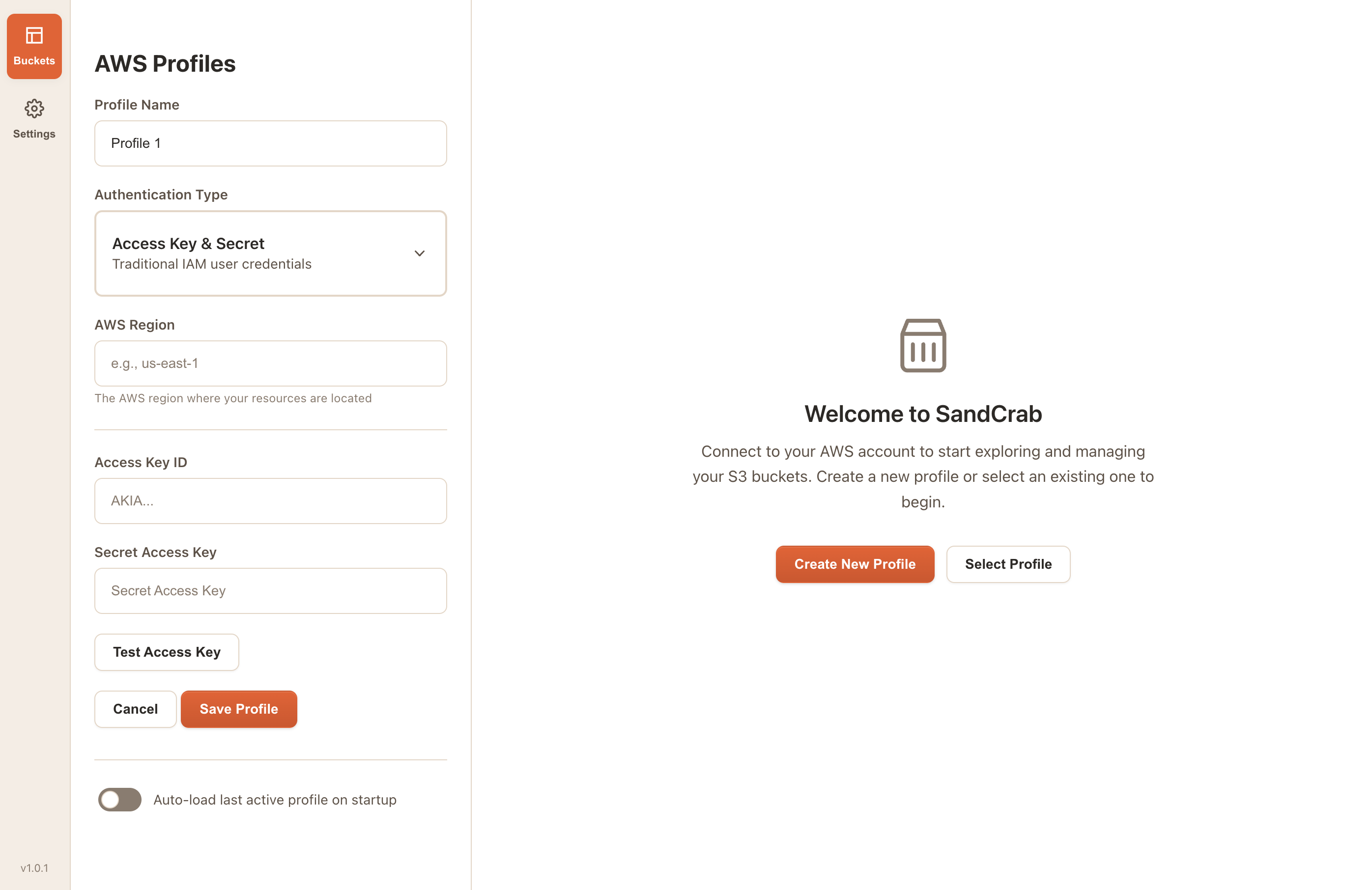
This is a straightforward method and may be ideal for individual developers or small teams getting started with SandCrab.
How It Works
You provide SandCrab with an AWS Access Key ID and Secret Access Key from an IAM user. SandCrab encrypts and stores these credentials securely in your macOS Keychain.
Setting Up Access Key & Secret
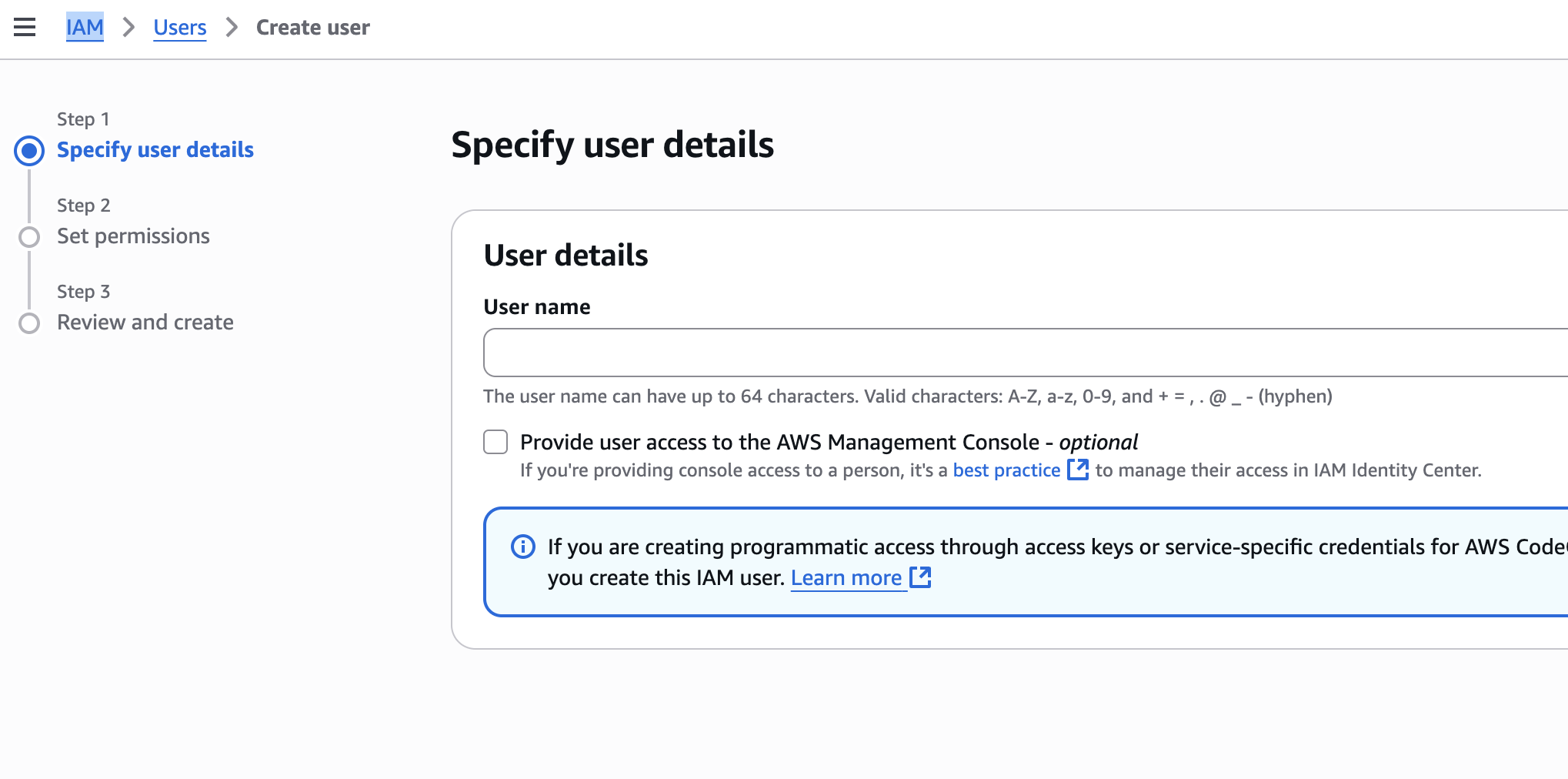
- Create an IAM User in AWS Console:
- Go to IAM → Users → Create User
- Choose "Programmatic access" to generate access keys
- Attach policies like
AmazonS3FullAccessor create custom policies
- Generate Access Keys:
- In the IAM user's Security Credentials tab
- Click "Create access key"
- Save both the Access Key ID and Secret Access Key securely

- Configure SandCrab:
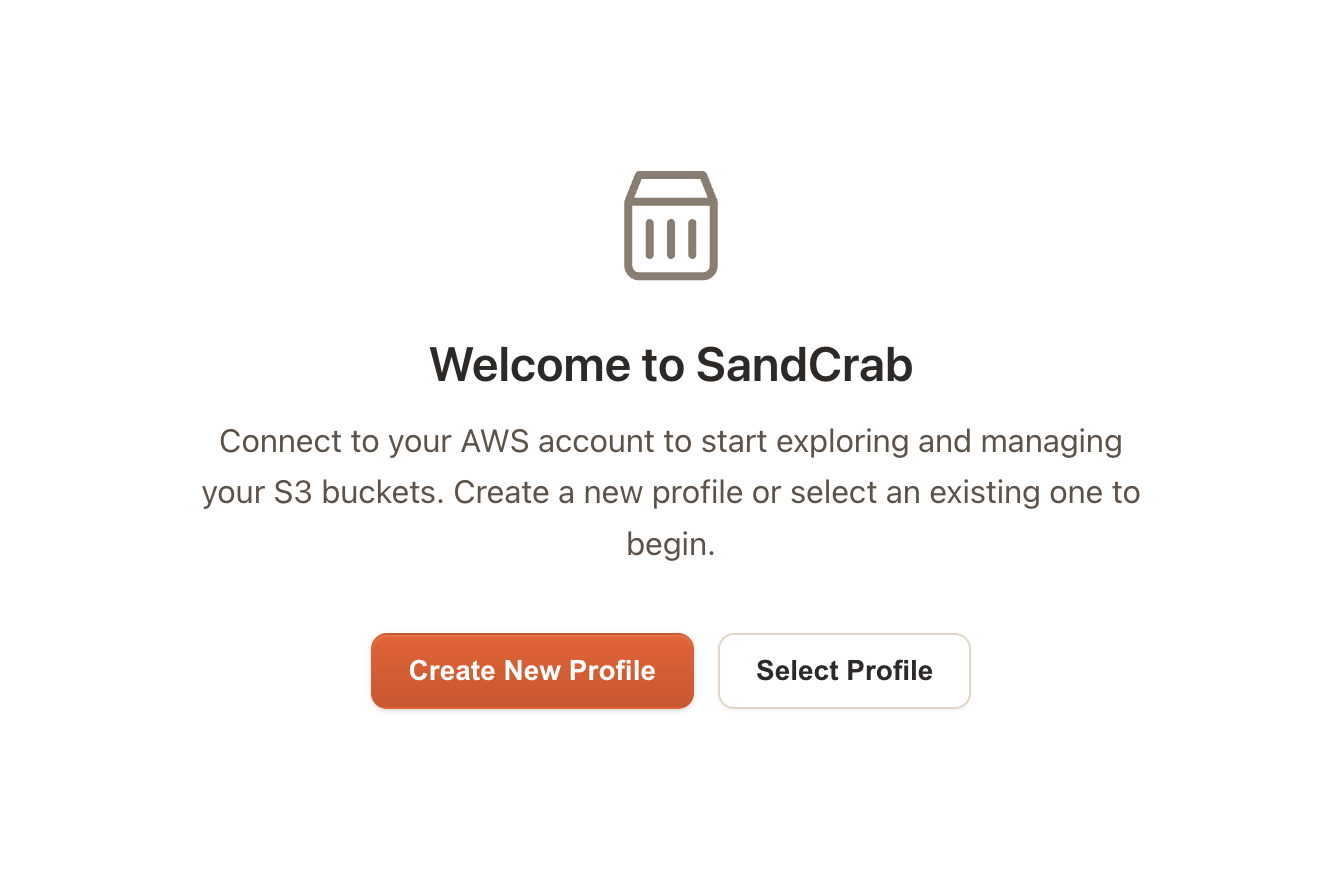
- Open SandCrab and go to AWS Profiles
- Click "Create New Profile"
- Select "Access Key & Secret" as the authentication type
- Enter your credentials and test the connection
Security Features
SandCrab implements several security measures for credential storage:
- macOS Keychain Integration: Credentials are encrypted and stored in your system keychain
- No Cloud Storage: Your AWS credentials never leave your local machine
- Connection Testing: Built-in validation ensures credentials work before saving
Best Practices
- Use Least Privilege: Only grant the minimum permissions needed for your S3 operations
- Regular Rotation: Rotate access keys periodically for enhanced security
- Monitor Usage: Use AWS CloudTrail to monitor API calls made with these credentials
- Separate Accounts: Consider separate IAM users for different environments (dev/prod)
Method 2: Assume IAM Role
How It Works
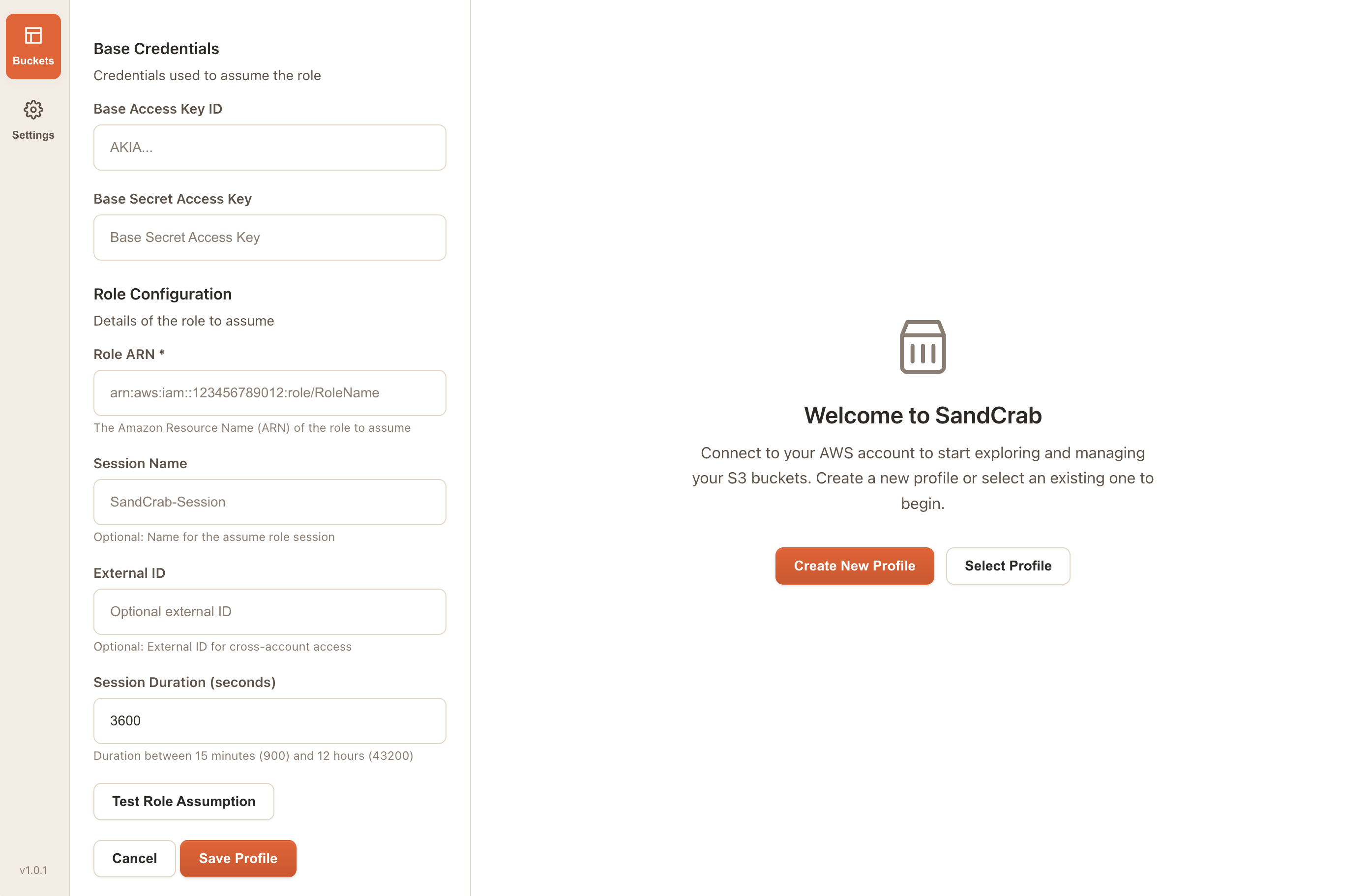
Instead of using long-term credentials, SandCrab uses AWS Security Token Service (STS) to assume a role temporarily. This provides short-lived credentials that automatically expire.
The Role Assumption Process
- Base Credentials: SandCrab starts with base IAM user credentials
- STS AssumeRole Call: Uses these credentials to assume a specified IAM role
- Temporary Credentials: Receives temporary credentials with the role's permissions
Setting Up Role Assumption
- Create the Target Role:
{ "Version": "2012-10-17", "Statement": [ { "Effect": "Allow", "Principal": { "AWS": "arn:aws:iam::YOUR-ACCOUNT:user/sandcrab-user" }, "Action": "sts:AssumeRole", "Condition": { "StringEquals": { "sts:ExternalId": "your-unique-external-id" } } } ] } - Attach S3 Permissions to Role:
- Attach policies like
AmazonS3FullAccessto the role - Or create custom policies with specific bucket permissions
- Attach policies like
- Configure Base User:
- Create an IAM user with minimal permissions
- Grant only
sts:AssumeRolepermission for the target role
- Set Up in SandCrab:
- Choose "Assume IAM Role" as authentication type
- Enter base credentials, role ARN, and external ID
- Test the role assumption
Advantages
- Temporary Credentials: Credentials expire automatically (default 1 hour)
- Least Privilege: Base user has minimal permissions, role has specific access
- Audit Trail: Clear separation between role assumption and S3 operations in logs
- Cross-Account Access: Safely access resources in different AWS accounts
- External ID: Additional security layer preventing confused deputy attacks
Best Practices for Role Assumption
- Short Session Duration: Use the minimum session duration needed
- Unique External IDs: Use unique, hard-to-guess external IDs for each role
- Condition Keys: Add additional conditions like source IP restrictions
- Regular Review: Periodically review role permissions and trust policies
Method 3: AWS CLI Profile
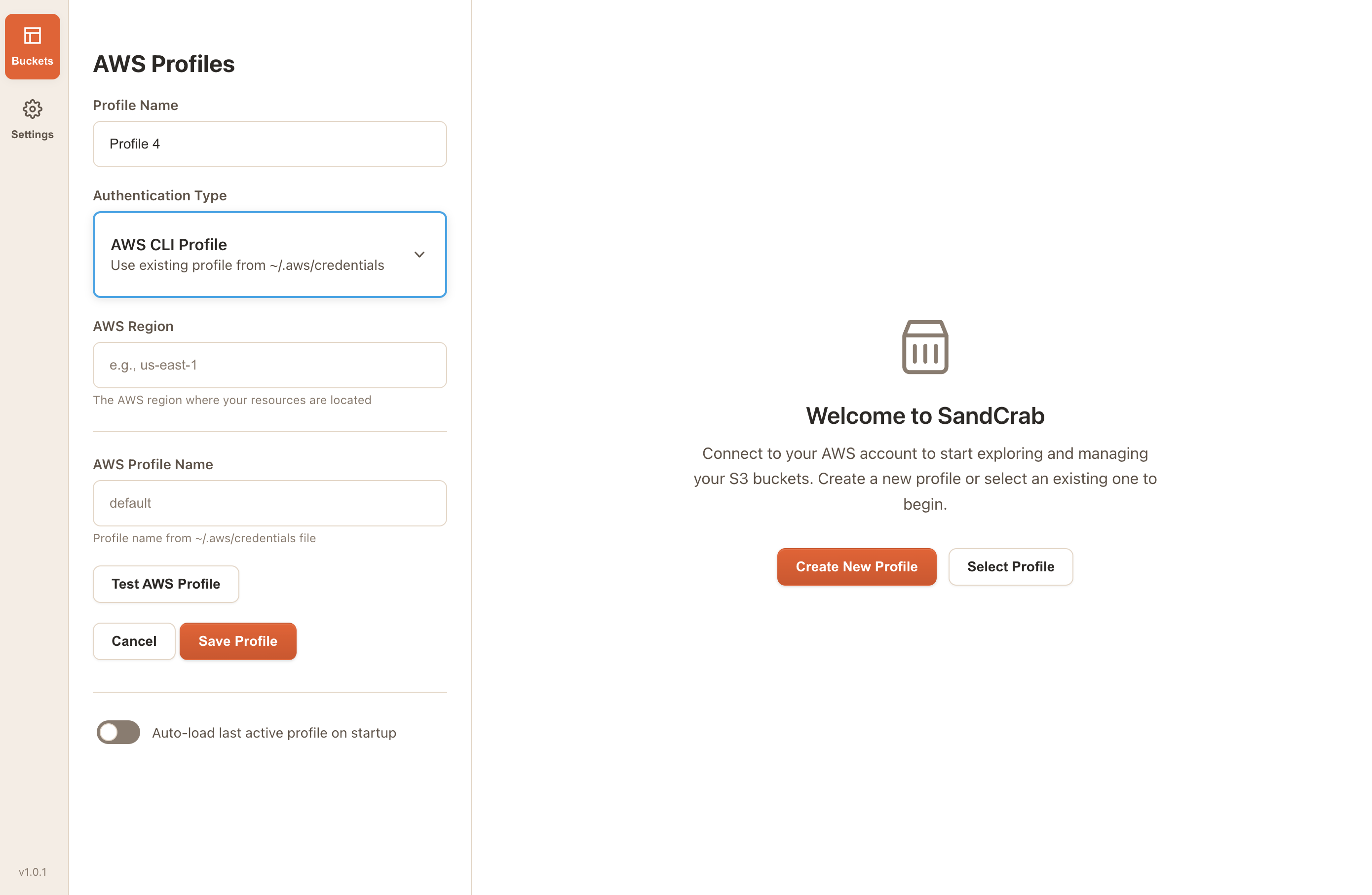
If you're already using the AWS CLI and have profiles configured locally, SandCrab can leverage your existing setup seamlessly.
How It Works
SandCrab reads your existing AWS configuration from ~/.aws/credentials and ~/.aws/config files, just like the AWS CLI. This means any profile you've configured for the CLI will work with SandCrab.
What SandCrab Reads
SandCrab accesses the same configuration files as the AWS CLI:
- ~/.aws/credentials: Access keys, secret keys, and session tokens
- ~/.aws/config: Region settings, output formats, and role configurations
- Profile Sections: Named profiles for different accounts or roles
Setting Up CLI Profile Access
- Verify AWS CLI Configuration:
# Check existing profiles aws configure list-profiles # Test a profile aws s3 ls --profile your-profile-name - Add Profile if Needed:
# Configure a new profile aws configure --profile sandcrab-profile - Select Profile in SandCrab:
- Choose "AWS CLI Profile" as authentication type
- Set the region and profile name
- Test the connection before saving
When to Use CLI Profiles
- Existing Workflows: You already use AWS CLI extensively
- Multiple Profiles: You manage many different AWS accounts or roles
- Consistency: You want SandCrab to use the same credentials as your CLI tools
Troubleshooting Common Issues
Invalid Credentials:
- Double-check your access key and secret key
- Verify the IAM user exists and has programmatic access enabled
- Check if the credentials have expired
Permission Denied:
- Ensure the IAM user/role has S3 permissions
- Check for overly restrictive policies
- Verify bucket policies don't block access
Role Assumption Failures:
- Verify the role ARN is correct
- Check the external ID matches
- Ensure the base user can assume the role
Managing Multiple Profiles
SandCrab makes it easy to work with multiple AWS accounts or environments:
Profile Management Features
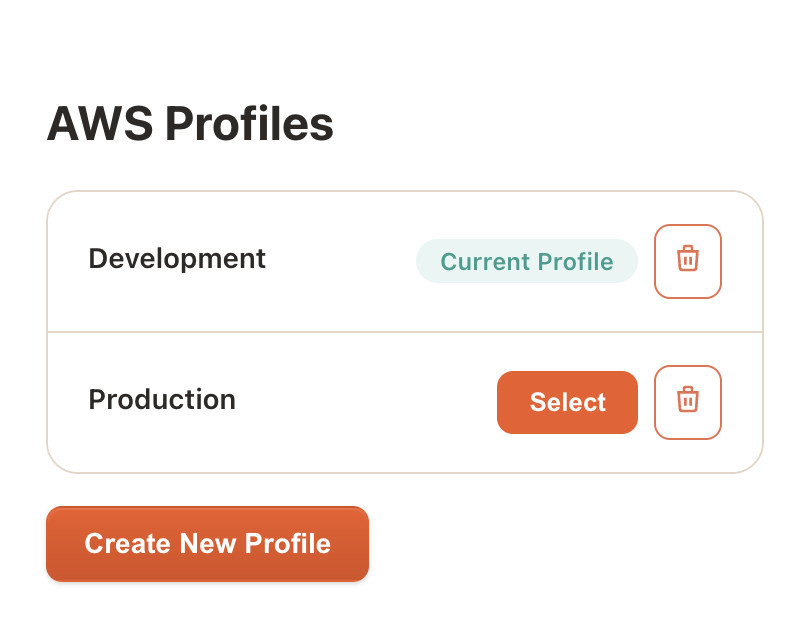
- Profile Switching: Quick switching between different AWS accounts
- Profile Organization: Name profiles descriptively (e.g., "Production", "Development")
- Current Profile Indicator: Always know which account you're working with
Best Practices for Multiple Profiles
- Descriptive Names: Use clear, descriptive profile names
- Environment Separation: Separate profiles for dev, staging, and production
- Account Isolation: Use different profiles for different AWS accounts
- Regular Cleanup: Remove unused profiles to keep things organized
Security Best Practices Summary
Regardless of which authentication method you choose, follow these security best practices:
- Principle of Least Privilege: Grant only the minimum permissions necessary
- Regular Credential Rotation: Rotate access keys and update roles periodically
- Monitor Usage: Use AWS CloudTrail to monitor API calls and access patterns
- Review Permissions: Regularly review and audit your AWS permissions
Conclusion
Setting up SandCrab with your AWS account is the first step toward streamlined S3 management. Whether you choose simple access keys, role assumption, or existing CLI profiles, SandCrab provides secure, reliable access to your S3 resources.
The key is choosing the right method for your security requirements and workflow. Start with what feels most comfortable, and you can always add additional profiles or upgrade to more secure methods as your needs evolve.
Once connected, you'll have access to all of SandCrab's powerful features: advanced search, secure file sharing, batch operations, and intuitive file management that makes working with S3 feel like working with local files.