
How to Share Links to S3 Objects
Learn how to generate presigned URLs for your S3 objects, allowing secure temporary access to private files in your buckets.
One of the more common tasks when working with Amazon S3 is sharing files with others. Whether you're sharing a document with a colleague, providing access to a media file, or distributing content to customers, SandCrab makes it easy to generate secure, time-limited links to your S3 objects.
Understanding Presigned URLs
Amazon S3 presigned URLs allow you to grant temporary access to your S3 objects without requiring users to have AWS credentials. These URLs contain authentication information in the query string, making them perfect for sharing files securely.
Key Benefits of Presigned URLs
- Security: URLs expire after a specified time period
- No AWS credentials required: Recipients don't need AWS access
- Audit trail: All access can be logged in CloudTrail
Generating Presigned URLs with SandCrab
SandCrab provides a simple, intuitive way to generate presigned URLs for your S3 objects. Here's how:
Step 1: Navigate to Your File
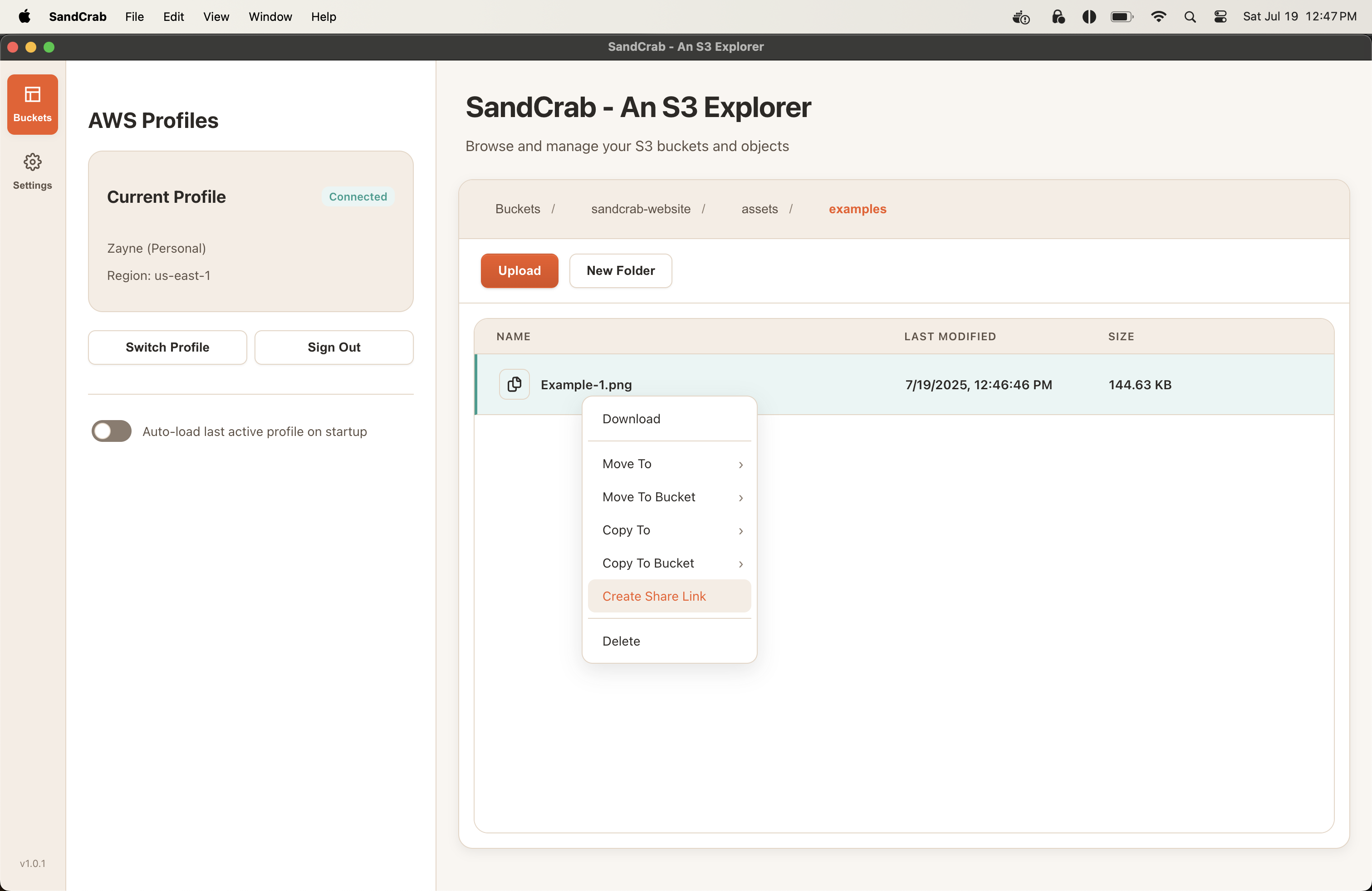
Open SandCrab and navigate to the S3 bucket containing the file you want to share. You can browse through folders just like you would in Finder.
Step 2: Right-Click and Select "Share"
Right-click on the file you want to share and select "Share" from the context menu. This will open the share dialog.
Step 3: Configure Your Share Settings
In the share dialog, you can configure your options:
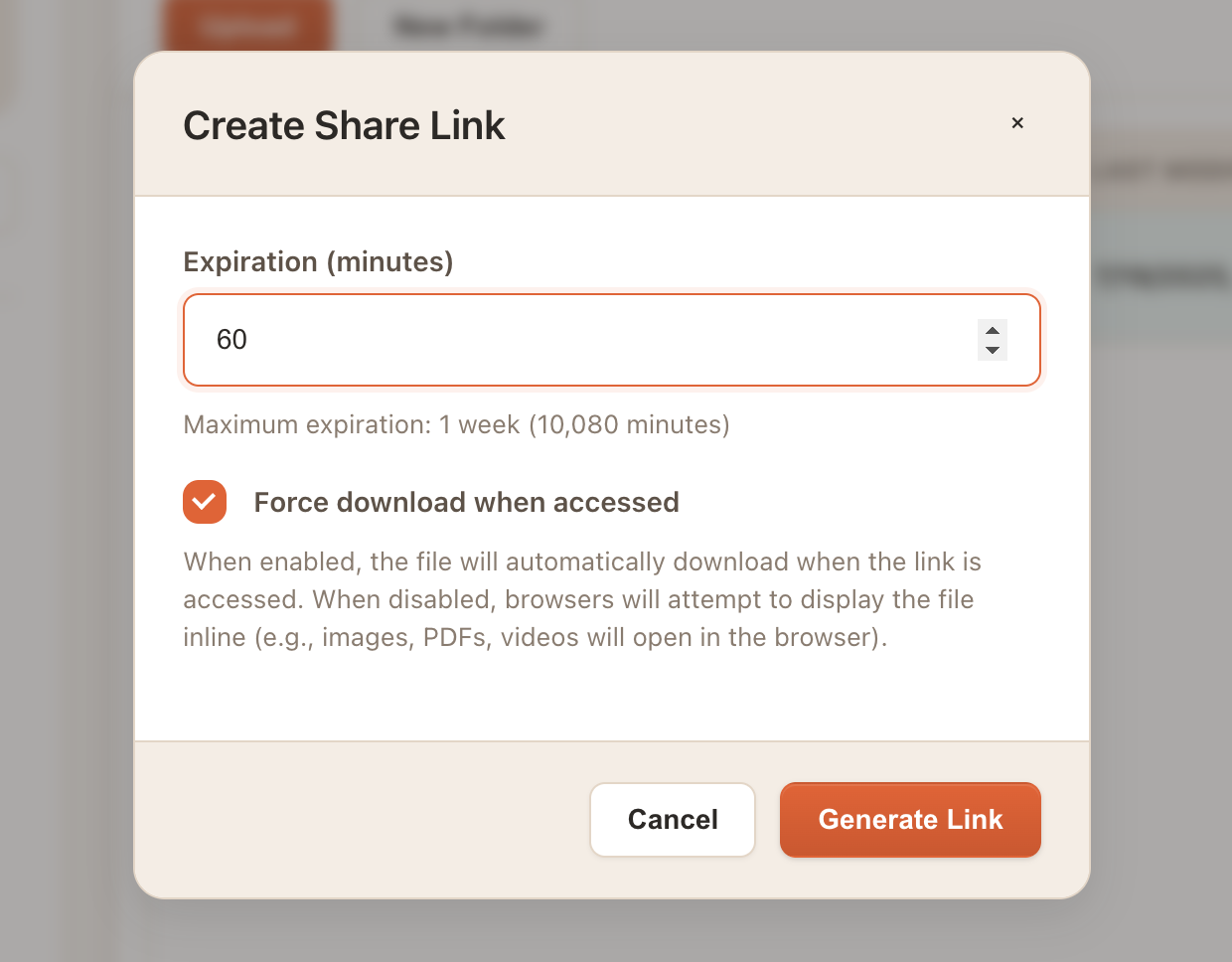
- Expiration Time: Choose how long the link will remain valid (up to 1 week)
- Force Download: Force the browser to download the file rather than displaying it inline
Step 4: Generate and Copy the URL
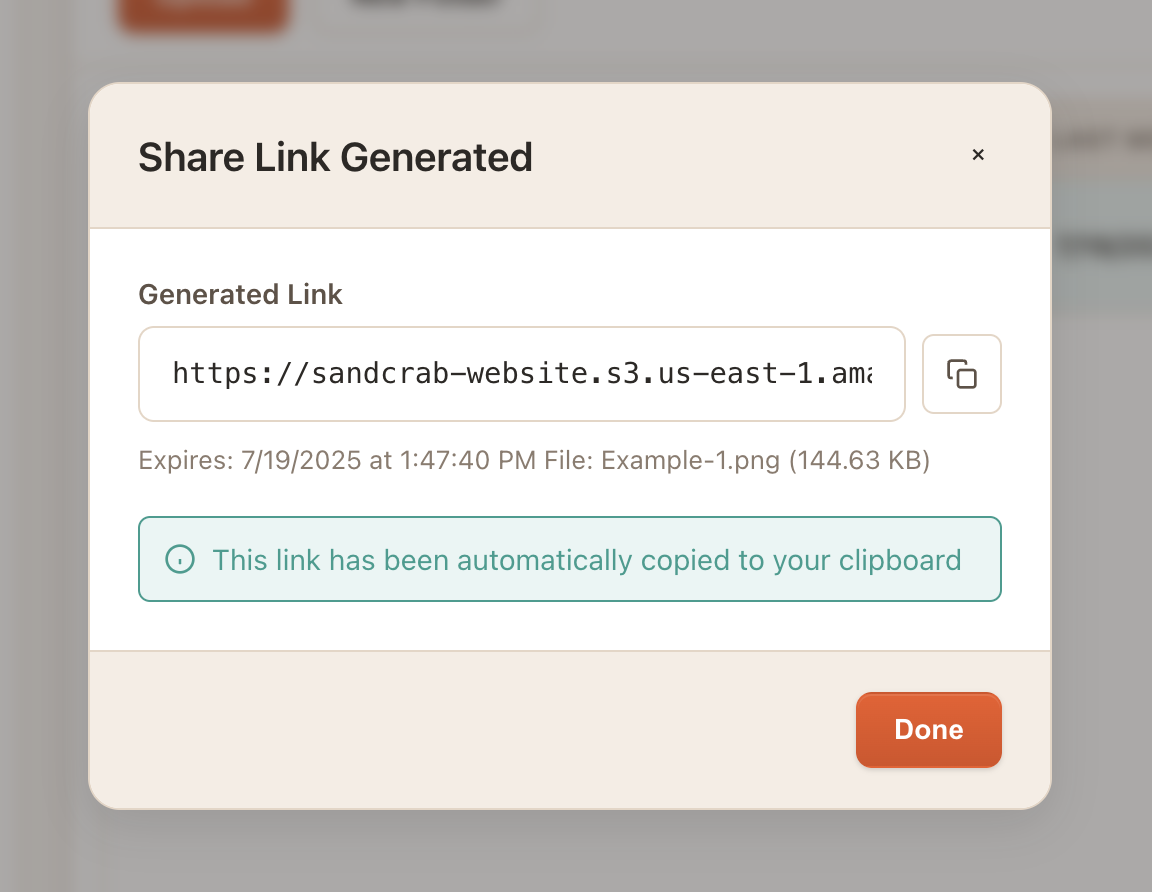
Click "Generate Link" and SandCrab will create a presigned URL for your file. You can then copy this URL and share it with anyone who needs access to the file.
Best Practices for Sharing S3 Objects
Choose Appropriate Expiration Times
Always use the shortest expiration time that meets your needs. For sensitive documents, consider using very short expiration times (1-4 hours). For general file sharing, 24-48 hours is usually sufficient.
Monitor Access Patterns
Use CloudTrail to monitor who is accessing your shared files and when. This helps you understand usage patterns and identify any unauthorized access attempts.
Use Content-Disposition Headers
When sharing files for download, consider setting the Content-Disposition header to "attachment" to force the browser to download the file rather than displaying it inline.
Common Use Cases
Sharing Media Files
Perfect for sharing large video files, images, or audio files with clients or team members without requiring them to have AWS access.
Document Distribution
Share reports, presentations, or other documents temporarily with specific individuals or groups.
Customer File Delivery
Provide customers with temporary access to purchased digital products or personalized content.
Security Considerations
Remember that presigned URLs provide temporary access to your S3 objects. Here are some important security considerations:
- URLs can be shared with anyone, so treat them as temporary credentials
- Monitor CloudTrail logs for unexpected access patterns
- Use bucket policies to restrict access to specific IP ranges if needed
Conclusion
SandCrab makes it incredibly easy to share your S3 objects securely using presigned URLs. By following these best practices and understanding the security implications, you can confidently share files with colleagues, clients, and customers while maintaining full control over access to your data.
Try out SandCrab's sharing features today and experience how simple S3 file sharing can be!